×

AI architecture tools use machine learning and generative AI to take over time-consuming tasks like documentation, design generation, rendering, and analysis.
Instead of following fixed rules or templates, these tools learn from data and patterns, helping architects make faster, more accurate, and more creative decisions.
Before we get into the list of tools, it helps to understand how AI differs from traditional and parametric design tools.
| Tier | Type | How It Works |
|---|---|---|
| Tier 1 | Traditional Automation | Follows fixed templates or rule-based scripts. Does not learn or adapt. |
| Tier 2 | Parametric Design | Uses algorithms that respond to input changes but still relies on manually defined rules |
| Tier 3 | AI & Machine Learning | Learns from data, identifies patterns, and generates or optimizes outputs without predefined rules. |
So, what does this look like in action?
As you go through the list, think about where your team spends the most time on repetitive work. That’s usually the best place to start with AI automation, because the right tool should fit into your process, not force you to change it.
Before putting this list together, we used a simple set of criteria to make sure each tool was genuinely worth your attention.
We looked at:
Let’s look at the first one in the lot…
| Website | https://piaxis.ai |
|---|---|
| Ideal For | Architecture and BIM teams who want to automate detailing without changing workflows |
| Best For Firm Scale | 5-person studios to 500+ person practices, PiAxis scales with you! |
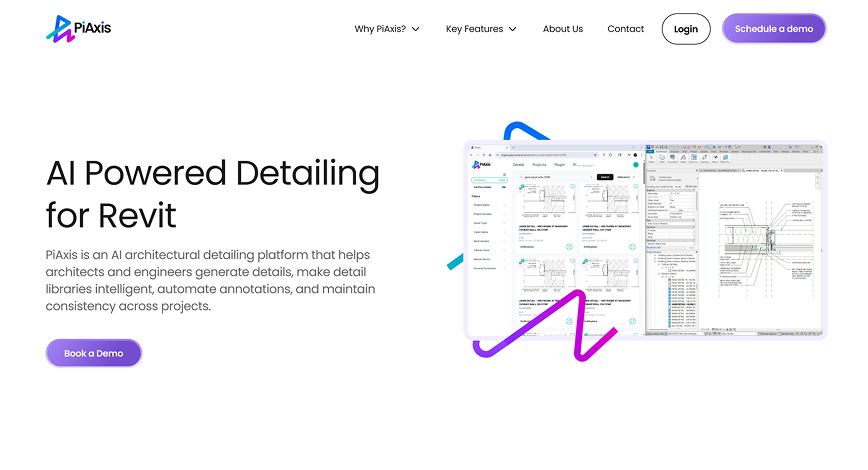
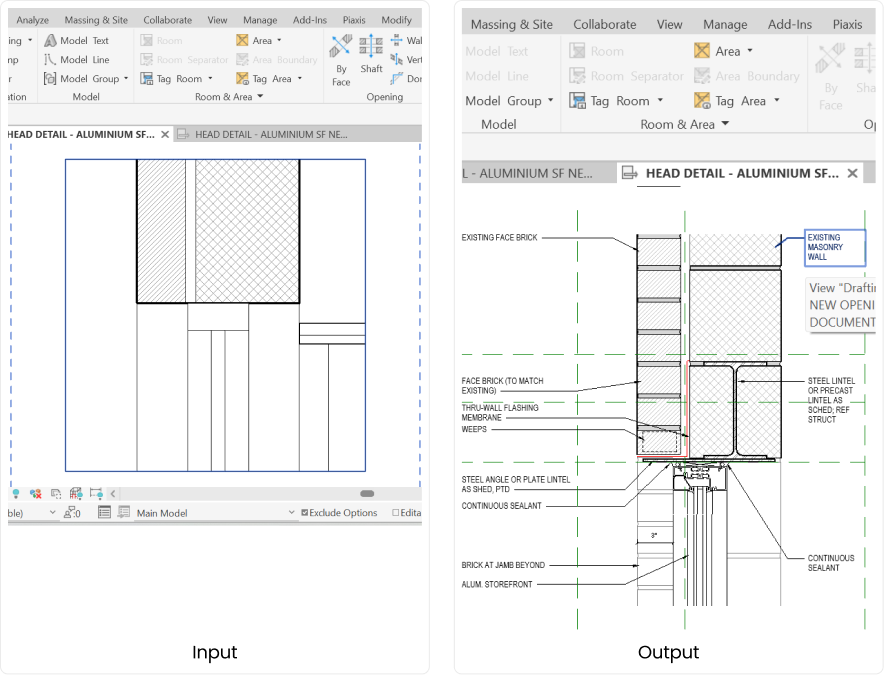
If you’ve ever wished Revit could handle your detailing for you, PiAxis is probably the closest thing to that wish coming true. It’s an AI tool built specifically for architects who are tired of spending hours, days, and even weeks on documentation.
You know that feeling when your team spends hours fixing details instead of actually designing? It never seems to end! PiAxis takes exactly that off your plate.
It learns your firm’s rhythm, keeps every detail consistent, and handles the repetitive work without slowing anyone down.
Suddenly, deadlines feel a little lighter, and the team actually gets to focus on design again.
Want to see it in action?
| Website | https://dtoaec.com |
|---|---|
| Ideal For | Mid-to-large architecture firms, sustainability-driven practices, and design-build firms with strong BIM workflows |
| Best For Firm Scale | 20–500+ person practices with BIM maturity and structured Revit standards |
According to their website, D.TO is a Revit-native AI detailing platform built for architecture firms that care as much about performance and sustainability as they do about precision. The tool looks at your Revit model, identifies problem areas in your building assemblies, and suggests the right detail solutions.
| Website | https://www.snaptrude.com |
|---|---|
| Ideal For | Architecture firms, developers, and design-build teams wanting to move beyond desktop BIM tools |
| Best For Firm Scale | From solo architects to 500+ person practices |
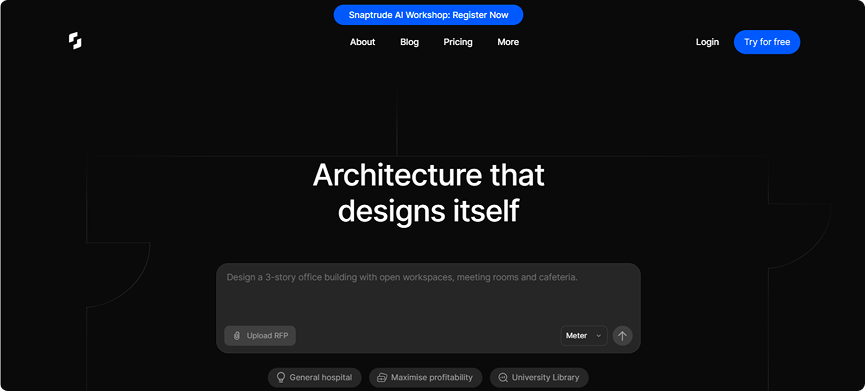
According to their website, Snaptrude is a cloud-native, AI-powered platform that lets teams go from an RFP to a full LOD 300 BIM model in minutes. Instead of dealing with file-heavy desktop tools like Revit or AutoCAD, everything happens in the browser.
| Website | https://www.chaos.com/veras |
|---|---|
| Ideal For | Architects, visualization teams, interior designers, and firms that want to produce renders quickly without GPU-heavy setups |
| Best For Firm Scale | Works for solo designers, mid-size studios, and enterprise firms alike |
Originally built by EvolveLAB and now part of Chaos (the team behind V-Ray and Enscape), it lets architects turn models or sketches into photorealistic images in seconds, directly from tools like Revit, SketchUp, or Rhino
| Website | https://architechtures.com/en |
|---|---|
| Ideal For | Residential architects, real estate developers, and feasibility consultants |
| Best For Firm Scale | Suitable for individuals, small studios, and large multi-project development firms |
According to their website, Architechtures is built specifically for residential developers and architects who want to generate, test, and optimize building designs in hours instead of months. It uses machine learning trained on real residential projects to automatically create layouts, unit mixes, parking plans, and cost analyses, all within a single cloud-based workspace.
| Website | https://www.autodesk.com/products/forma/overview |
|---|---|
| Ideal For | Architects, urban planners, developers, and feasibility consultants |
| Best For Firm Scale | From solo practitioners to large multi-office firms |
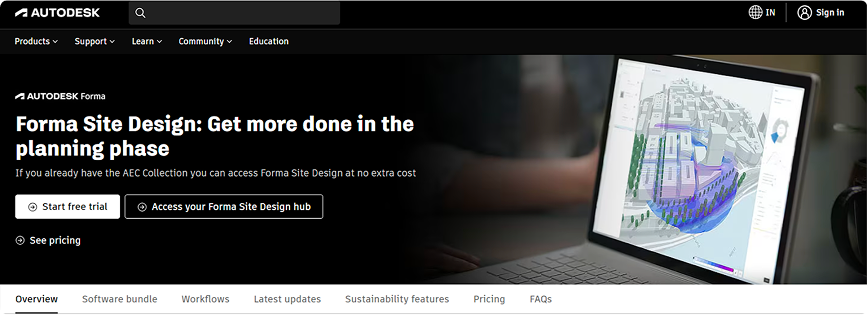
According to their website, Autodesk Forma is Autodesk’s answer to what comes before design. It’s a cloud-based platform that helps architects, planners, and developers shape the earliest stages of a project, when ideas are still fluid but decisions have the biggest impact.
| Website | https://www.testfit.io |
|---|---|
| Ideal For | Real estate developers, architects, planners, contractors, and feasibility consultants |
| Best For Firm Scale | From small practices to enterprise-level firms |
According to their website, TestFit redefines how developers and architects test what’s possible on a site. The platform brings together three traditionally separate workflows, like financial modeling, construction cost, and design, into one interactive tool.
Here’s a table for a quick summary:
| Tool Name | Primary Focus | Platform Type | Pricing Tier |
|---|---|---|---|
| PiAxis | AI-Powered Revit Detailing Automation | Revit Add-in (Native Plugin) | Custom Pricing |
| D.TO (Design Together) | BIM-Native AI Detailing & Assembly Design | Revit Add-in (Native Plugin) | Mid-Range to Premium (Freemium trial) |
| Snaptrude | Cloud-Native Concept Design & Full BIM | Cloud-Native (Web-based) | Mid-Range ($60/mo – $100/mo per user) |
| Veras | AI-Powered Photorealistic Rendering & Visualization | Standalone Web App + CAD Plugins | Mid-Range ($12-59/mo Named; $51/mo Floating) |
| Architechtures | AI Residential Design Optimization & Feasibility | Cloud-Native (Web-based) | Affordable ($40/mo – $294/mo) |
| Autodesk Forma | Early-Stage Site Planning & Generative Design | Cloud-Native (Web-based) | Premium ($307/mo or approx. $3,600/yr) |
| TestFit | Real Estate Feasibility & Site Planning Optimization | Cloud-Native (Web-based) | Affordable to Mid-Range ($100-250/mo, $8K+/year) |
Choosing the right platform really depends on what your projects look like and how your team works day to day. Some teams just need a faster way to test feasibility, while others want something that handles drawings, sheets, and documentation end-to-end.
So, before jumping in, it helps to know what you actually need.
To make things easier, here’s a quick checklist you can use to figure out which platform really fits your workflow.
Every AI tool promises smarter, faster work. But the real difference lies in how well it fits into your process.Here’s what’s worth paying attention to when you’re comparing them.
Not every tool will cover it all, and that’s fine. The goal is to find one that fits how your team actually works. Think of these as reference points, not absolute requirements.
Some tools sound brilliant in theory but fall apart the moment you try to fit them into a real project. Here are a few signs that should make you pause for a second:
That’s a big clue it’ll slow your team down instead of simplifying things, especially if everyone has to depend on one “tech person” to make it work.
Jumping between disconnected platforms breaks focus and turns every small update into a chore.
Tools that stay static don’t bring long-term value. And, when a system can’t adapt to your firm’s way of working, it starts feeling outdated way too soon.
A tool that hides behind a short or restricted trial usually wants commitment before you can see the cracks.
If you have to spend hours cleaning up after it, it’s not automation, but it’s actually rework in disguise.
Every firm knows the story. There’s always another set to finish, another round of revisions, another detail that somehow slipped through. Somewhere along the way, there’s barely any room left for actual design!
What you need is the backing of an AI architecture tool that just gets you!
Of course, it’s not as simple as picking the first shiny tool that promises automation. You need to find one that fits. Something that understands the pace, structure, and quirks of an architectural workflow.
PiAxis quietly removes the small frictions that slow everyone down. It slots right into your workflow, learns how your team draws, and quietly takes care of the grind. Sheets, details, annotations, all handled! You start noticing projects move faster, fewer revisions, and a team that finally has time to think again.
If that sounds like the kind of change you’ve been needing, maybe it’s worth a quick chat. Just to see how much easier your next deadline could feel.
Different stages of design need different tools. Cloud platforms are great for rapid concept iterations, Revit handles detailed design, and a Revit add-in like PiAxis automates documentation. Instead of choosing one over the other, think of them as complementary. Each handles a specific bottleneck, keeping your workflow faster and more accurate without overloading a single platform.
Start with the tasks the tool automates. Track how many hours your team spends on them yearly, multiply by the loaded labor cost, then compare it to the tool’s subscription.
For example, if documentation takes 600 hours annually and a tool cuts that by half, the saved time easily justifies the investment. You should always use your own numbers, not industry averages, for accuracy.
Most cloud platforms allow exports to industry-standard formats like Revit, IFC, Excel, or DXF. Think of them as accelerators for specific workflow stages rather than permanent storage.
Keep your main files in Revit or another standard format, and make sure you can export all your data on demand. A vendor that hesitates here could create lock-in risks.
Marketing often highlights extreme examples, like “4 days becomes 4 hours,” but usually only for a very specific task. Look for clear definitions of what was measured. Also, make sure you test the tool on a real project.
×